5. Account and Profile
Your Profile
Section titled “Your Profile”Your profile in Rolet AI is your personal page and the control center for your presence on the platform.
Here, information about you, your characters, saved heroes, subscriptions, activity, and main account settings are collected.
You can open the profile through the Profile section in the navigation menu.
The profile displays an avatar, name, username, bio, level, Buffday, number of followers, following, and publications.
The avatar is your profile image: it helps other users recognize you as a creator and can be displayed next to your activity on the platform.
The name is how you are displayed to other users and how you can be seen in the profile, comments, and other public places.
The username is a unique profile identifier: it is used for the link to your page and helps other users find you. It can also be displayed in public places.
The bio is a short description about you: here, you can tell what characters you like, in what style you create heroes, or what users should know about your profile.
The level and Buffday show your activity and progress on the platform, reflect the user’s participation in Rolet AI, and can be connected to the reward or activity system.
Followers and following show your connection with the community: who follows your characters and which creators you follow.
The profile helps you return to favorite characters, manage your publications, edit information about yourself, and develop yourself as a creator.
Editing the Profile
Section titled “Editing the Profile”You can change information about yourself through the edit button in the profile.
There, you can update your avatar, bio, and other available data, and then save the changes.
The avatar makes the profile recognizable and is displayed in a circular shape, so the uploaded image will be cropped into a circle.
The bio helps briefly tell about yourself, your style, or the characters you create.
If you want to develop your profile as a creator, use the bio as a small introduction for future followers.

The avatar and bio must comply with the Rolet AI rules and may be hidden or rejected in case of a violation.
Your Characters
Section titled “Your Characters”The Characters tab displays the characters you have created or published.
Here, you can return to your heroes, view publications, and manage them depending on the available settings.
Other users see only public characters.
If a character is published for everyone, they will be able to open them, start a chat with them, save them, leave a reaction or comment; private characters remain available only to you, and characters with limited access are available to those who have a direct link.
Next to a character, their current status may be displayed: it helps understand whether the character is published, whether they are visible to other users, and whether they require attention from the creator.
Draft means that the character is saved as a draft and is currently available only to you; Active means the character is published and available depending on the selected visibility; Pending or Moderation means the character is under review and may temporarily not appear in public sections; Private means the character is available only to you; Link-only means the character can be opened only by direct link; Rejected or Blocked means the character did not pass review or was restricted because of a violation of the platform rules, so they need to be edited with the Rolet AI requirements in mind.
Saved Characters
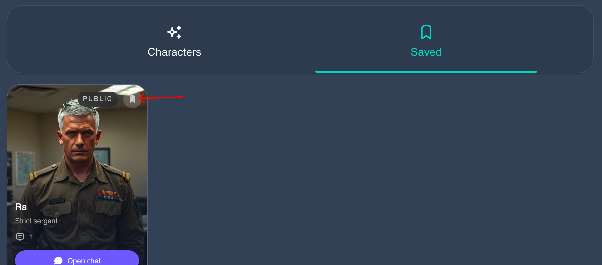
Section titled “Saved Characters”The Saved tab contains the characters you have saved.
This is convenient if you want to quickly return to a hero, continue communication, or not lose a character you liked.
Saves help collect a personal selection of heroes you want to return to.
This tab is visible only to you: other users do not see which characters you have saved.
You can remove a character from the list by clicking the Save button again.
Creator Profile
Section titled “Creator Profile”If a user publishes characters, their profile becomes a creator page.
Other users can open it, view published heroes, read the bio, follow the creator, and keep track of new characters.
The creator profile helps develop an audience around characters.
The clearer the creator’s style, description, and selection of heroes are, the easier it is for users to find their works and return to new publications.
Followers and Following
Section titled “Followers and Following”The profile shows how many users follow you and how many creators you follow.
Following helps you keep track of creators whose characters you like, and followers help creators build an audience around their heroes.
If you liked a character, it is worth opening the creator’s profile - perhaps they have other heroes in a similar style.
You can follow a creator on their page: go to the creator’s profile from the feed, character page, or search and click Follow.
After following, content from the creators you follow will appear in the Following feed.
Account and Settings
Section titled “Account and Settings”By clicking the gear icon in the profile, you will go to the Account page.
There, you can manage language, content filters, subscription, balance, energy, coins, and other platform features.

In the Account section, open Settings to change the main profile and account parameters.
These settings are saved on the account side and apply on all devices where you log in to Rolet AI.
At the top of the page, information about your account is displayed: name, username, and email.
The username is used as the public address of the profile and can be displayed in the link to your page, mentions, creator profile, and other public places.
It can be changed in the Public Username field: use from 4 to 32 characters, start with a letter, and enter only lowercase letters, numbers, or an underscore.
In the Theme block, you can choose the appearance of the interface.
System uses the theme of your device, Light enables light mode, and Dark enables dark mode for comfortable use in low light.
In the Language block, the account language is selected.
It affects the language of the interface, system messages, and main Rolet AI texts.
NSFW Content is a filter for displaying adult or explicit materials.
If it is enabled, the account can see characters with the NSFW label; if it is disabled, such characters are hidden from the feed, search, profiles, character pages, and other sections of the site.
The NSFW label helps separate adult content from regular public sections and gives the user control over what they see.
Rolet AI supports freedom of creativity, but content must be correctly labeled and must not violate the law or the platform rules.
The Service Emails item is responsible for important emails from the service: account notifications, product updates, subscription, payment, and other messages related to using Rolet AI.
In the Account Access block, login methods and technical account information are displayed.
Here, you can see whether password login is enabled, which services are connected, which country is specified for the account, and what its Account ID is.
At the bottom of the page, there is the Logout button - it ends the current session and logs out of the account on this device.
More details about all settings of the Account section are described in the following sections of the guide.