2. Feed and Search
Main Feed
Section titled “Main Feed”The main feed is the place where you meet Rolet AI characters. You can open it through the Home section in the navigation menu.
Here, a character appears not just as a card, but as a visual scene: with an avatar or a living avatar, name, creator, short line, description, tags, and quick buttons to start communication.
At the top of the feed, you can switch between the For You and Following sections.
For You shows personal recommendations: characters that may suit you based on your interests, activity, and preferences.
Following shows content from creators you follow. If you have not followed anyone yet, this section may be empty - first open the page of a creator you like and click Follow.
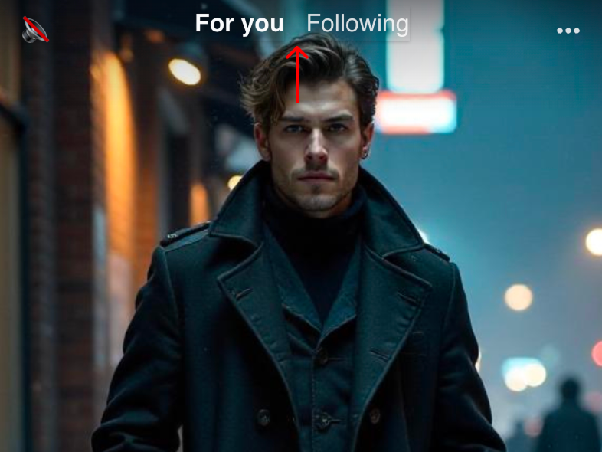
Character Card
Section titled “Character Card”The character card displays their avatar or living avatar, name, creator, LLM model, short description, tags, and action buttons.
If you click on the creator’s name, you can go to their profile and see other characters in a similar style.
The buttons in the center of the card allow you to quickly choose the communication format: open a chat, start a call, or go to video chat if the feature is available.
This way, you can immediately choose exactly how you want to interact with the character: through text, voice, or in a more living format.

The sound icon in the feed turns the character’s voice playback on or off.
By default, the sound may be turned off so that the feed does not play the voice automatically.
If you turn on the sound, the character will be able to say their line in the feed.

Likes, Saves, and Comments
Section titled “Likes, Saves, and Comments”Under the character card, there are social actions. You can like, open comments, save the character, or share them with a friend.
A like shows that you liked the character and helps creators receive feedback.
Comments open the character discussion: there, you can read other users’ opinions and leave your own messages.
Saving adds the character to your profile in the Saved tab, so you can quickly return to them later.
Share allows you to send the character to another person.

Comments, reactions, and saves help Rolet AI be not only a place for personal communication with characters, but also a space where community activity appears around heroes.
Character Menu in the Feed
Section titled “Character Menu in the Feed”In the upper-right corner of the card, there is a ••• menu.
Through it, you can mark a character as Not Interested if they do not suit you.
This helps the system better understand your preferences and improve recommendations in the feed.

You can also send a report about a character through this menu.
Use Report if the character violates the Rolet AI rules, contains inappropriate content, incorrect labels, spam, threats, impersonation of another person, or other problematic material.
In the report form, you can describe what exactly is wrong; this information will be used during the review.

Search
Section titled “Search”The Search section helps you find characters and creators outside the feed. You can open it through the Explore section in the navigation menu.
You can enter a query in the search bar to find a character by name, description, theme, or creator.
The search page may also display popular tags, collections, recommended characters, new characters, popular heroes, and other lists.
These blocks may change over time to better help you find interesting content.

Tags and Recommendations
Section titled “Tags and Recommendations”Tags help you understand the genre, style, and format of a character faster: for example, romance, fantasy, companion, roleplay, caring tone, dramatic atmosphere, or another type of interaction.
They are used in search, recommendations, and public sections of Rolet AI.
Use search and tags if you want to find not a specific character, but a mood or communication format: for example, a hero for a calm dialogue, a romantic story, an adventure, horror, comedy, or atmospheric roleplay.
If you click on a tag in the feed, character card, or another section of the site, the page of this tag with similar characters will open.
This helps you find heroes in the needed genre, style, or mood faster.