3. Communication, Media, and Live Features
How to Start a Conversation
Section titled “How to Start a Conversation”To start communication, choose a character in the feed who catches your attention and select the interaction format: text chat, call, or video call.
The large button in the center opens the chat, the button with the phone starts a call, and the button with the camera starts a video call.
If you want to start a new chat, return to the feed and choose another character.
The current conversation will be saved, and you will be able to return to it at any moment.

How to Continue a Conversation
Section titled “How to Continue a Conversation”To return to a conversation with a character, open the Chats section in the navigation menu and select the needed dialogue.
Your conversation is saved in the chat, so you can continue the story from the place where you stopped.
If you no longer need the chat, you can delete it: click the three dots in the right corner of the needed chat and select Delete Chat.
Text Chat
Section titled “Text Chat”When you open a chat, the character starts the dialogue with a greeting.
This can be a short welcome, a first line, or a full starting scene that sets the mood, situation, and reason to reply.
You can answer with a regular message, ask a question, continue the scene, or describe an action.
To show an action in roleplay format, write it between asterisks: for example, carefully opens the door and looks inside Is anyone here?
The character will perceive such a message not only as words, but also as an action inside the scene.
This format can be used to describe gestures, emotions, surroundings, events, or the behavior of your hero during the dialogue.
Length and Format of the Reply
Section titled “Length and Format of the Reply”The length and format of the reply depend on the settings set by the character’s creator, but in text chat, the reply cannot exceed 300 tokens.
For better readability, the system usually separates lines and actions into separate lines.
In calls and video calls, replies are shorter: up to 50 tokens.
In this format, the character replies as in a live conversation, so actions and long scene descriptions are not used.
Repeat Reply
Section titled “Repeat Reply”If the character’s reply did not suit you or you want to see another version of the scene development, click the Repeat Reply button located under the reply.
The character will create a new version of the last message while preserving the context of the conversation.

Voice Playback of Messages
Section titled “Voice Playback of Messages”Under each character reply, there is a Play button.
Click it to hear the line in the character’s voice.
Voice helps you feel not only the text, but also the mood: the pause, intonation, softness, tension, or emotion of the scene.
Sometimes the same phrase sounds completely different when the character says it themselves.

Images in Chat
Section titled “Images in Chat”In Rolet AI, the chat can be supplemented with images that help visualize the scene and make the communication more atmospheric.
An image is created based on the character and the dialogue context, so it can reflect the mood, situation, or moment from your conversation.
You can request an image manually by clicking the Image button under the character’s reply.
Rolet AI also has automatic image generation: images appear in the dialogue automatically with different frequency to strengthen immersion and add visual moments to the story.
At the moment, automatic image generation cannot be turned off.

Videos in Chat
Section titled “Videos in Chat”In Rolet AI, each character can create a video based on their reply.
This helps turn a moment from the conversation into a short living scene and see how the dialogue comes to life visually.
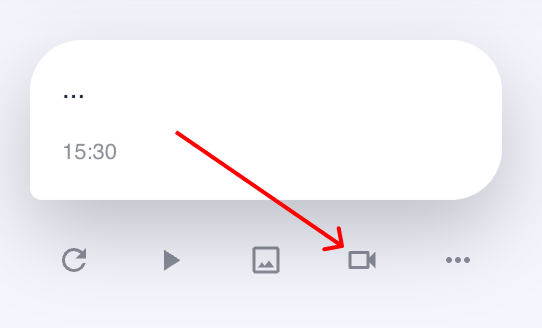
To request a video, click the Video button under the character’s message.
The video is created based on the hero’s image and the context of the conversation, so it works best when the scene already has an action, emotion, or expressive moment.
Pinning Messages
Section titled “Pinning Messages”In chat, you can pin an important message to quickly return to it later.
To do this, click the ••• menu under the needed message and select Pin Message.
The pinned message will appear at the top of the chat and will be marked as Pinned Message.
This is convenient for important scene moments, key character lines, agreements, plot twists, or details that you want to keep visible.

Deleting Messages
Section titled “Deleting Messages”If a message is no longer needed, it can be deleted from the chat.
Click the ••• menu under the needed message and select Delete Message.
After deletion, the message will disappear from the conversation, and the character will “forget” this part of the conversation.

Clear History
Section titled “Clear History”If you want to start the conversation with a character from the beginning, click ••• in the upper-right corner of the chat and select Clear History.
This will delete all messages from the current chat.
After clearing, the character will no longer remember the previous conversation in this dialogue.
Simply put, the story will start with a clean slate.

Delete Chat
Section titled “Delete Chat”If you no longer want to see the dialogue with a character in the chat list, click ••• in the upper-right corner of the chat and select Delete Chat.
Deleting a chat removes it from the Chats section and deletes the conversation with this character.
Unlike clearing history, the chat will disappear from the list, so it will no longer be possible to return to it as the current dialogue.

How to Change the Model
Section titled “How to Change the Model”The model is the character’s “brain”: it affects the response speed, communication style, depth of lines, freedom of dialogue, ability to stay in role, and ability to develop the scene.
Each model has its own response style: one is better suited for fast, living dialogues, another for literary scenes, a third for complex plots and reasoning, and so on.
Usually, we recommend using the model chosen by the character’s creator, because it better matches the hero’s idea, personality, and communication manner.
To change the model, click ••• in the upper-right corner, select Model, and then choose the needed model from the list.
It is worth changing the model if you want to try a different pace, depth, or communication style with the character.

A call allows you to communicate with a character by voice, without text input.
To start a call, choose a character in the feed and click the Call button.
A call can also be started from the text chat with the character by clicking the call button at the top of the screen.

Before the conversation starts, the site may request access to the microphone.
Allow access, otherwise the character will not be able to hear your speech.
After connecting, you will see the call screen with the connection status, the character’s avatar, their name, and control buttons.
During the call, you can turn the microphone on or off.
If you turn off the microphone, the character will stop hearing you, but will be able to continue their current reply.
To end the call, click the red button with the phone icon.
The chat button allows you to return to the text dialogue, and the video chat button allows you to switch to the video chat format if it is available.
In calls, the character replies in turns: first the current request is processed, then the next one.
If you speak during the character’s reply or while the system is processing speech, your words may be collected and processed after the current reply.
Because of this, sometimes there may be a delay before the next line.
Calls are not duplicated in text form in the chat history, but the character takes the communication context into account as long as the history has not been cleared.
If you want to start the conversation with a clean slate, open the text chat with this character, click ••• in the upper-right corner, and select Clear History.
After that, the character will no longer remember the previous conversation and voice communication in this dialogue.
In calls, characters do not yet say the first message and try to answer lively and naturally, without roleplay actions.
The call feature is in test mode: delays, unstable behavior, or raw moments in the quality of the reply are possible.
We will gradually improve the speed, stability, and quality of voice communication.
Video Chat
Section titled “Video Chat”Video chat is a communication format in which the character is perceived not only as a voice, but also as a visual image.
To start a video chat, choose a character in the feed and click the Video Chat button.
Video chat can also be opened from the text chat, or you can switch to it from a regular call if the feature is available.

For video chat, access to the microphone is also required.
After connecting, you will see a screen with the character’s avatar, their name, the connection status, and control buttons.
In the interface, you can turn off the microphone, return to chat, end the conversation with the red button, or switch between the available communication modes.
When video chat is launched for the first time, the character may need to prepare a video avatar or idle animation.
This may take several minutes, and a corresponding notification will appear in the interface.
When the preparation is complete, video chat will become available for communication.
As in calls, replies in video chat are processed in turns.
If you speak while the character is replying or while the system is still processing the previous request, your speech may be processed as the next message.
Therefore, sometimes there may be a delay between your line and the character’s reply.
Video chat history is not saved as a separate text transcript, but the character continues to take the context of the current dialogue into account.
To clear memory for calls and video chat, you need to clear the history in the text chat: open the chat with the character, click ••• in the upper-right corner, and select Clear History.
After clearing, the story will start again.
In video chats, characters do not yet start the conversation with the first message and try to speak naturally, without describing roleplay actions.
Video chat is in test mode: animation quality, response speed, and stability may change.
We will gradually improve this feature so that characters look and sound more alive.
At the moment, the character in video chat hears you through the microphone, but does not see the image from your camera.
The camera in the interface is used for the video chat mode.